
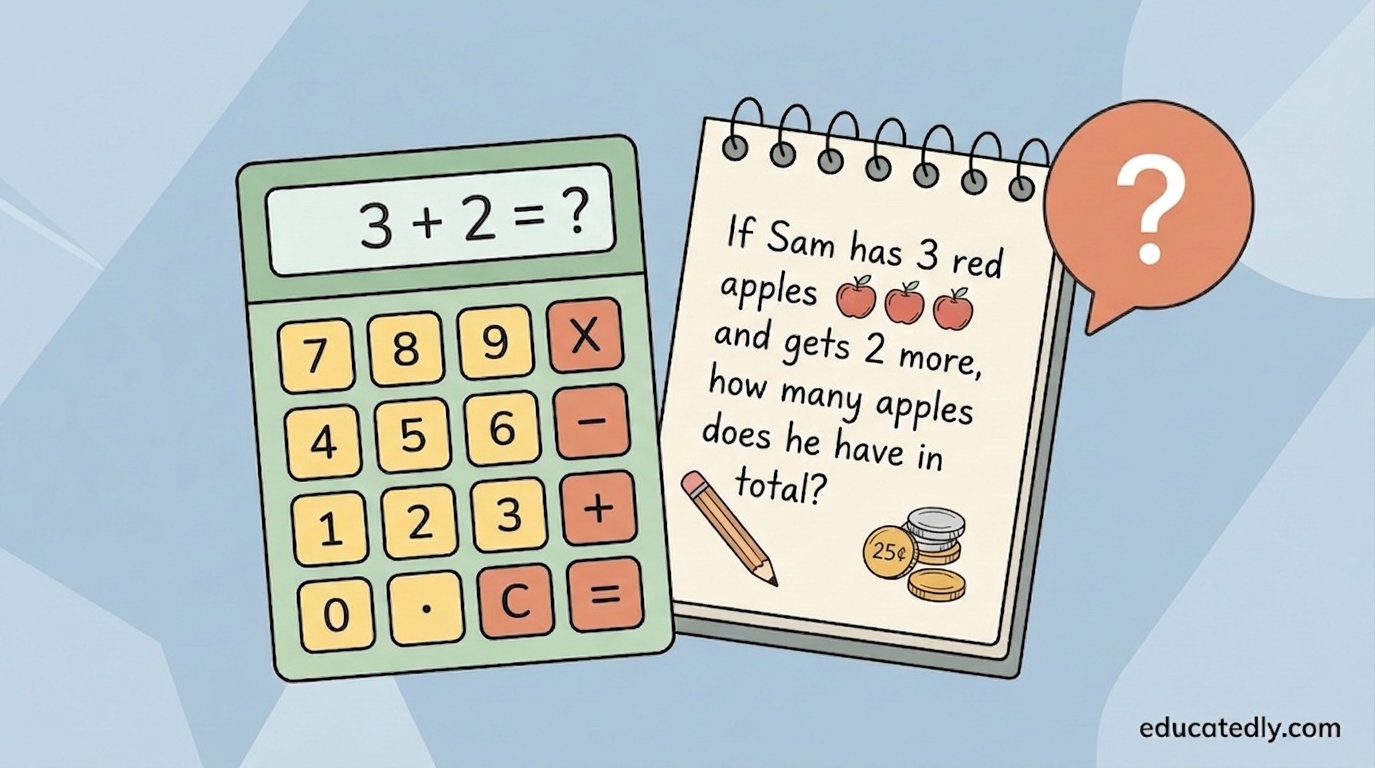
Math Helper is built to guide students toward understanding a problem, not just hand them the answer — which is great for actual learning, but not always what you need in the moment. Say a parent is checking their kid’s homework and just wants to confirm the final number, or a student is stuck and genuinely needs to see the full method laid out. In those cases, the guiding-questions approach can feel like it’s slowing you down.
Here’s the good news: Math Helper will switch modes if you just tell it to.
Try this word problem as a test:
A shopper bought 4 apples at 50 cents each, 3 bananas at 35 cents each, 1 pencil at 10 cents, and a dozen eggs at $4.99. They paid with a $20 bill. If the sales tax rate is 10%, what will their change be?
Paste that into Math Helper, and by default, it’ll likely respond with a few guiding questions — asking you to identify the subtotal first, then think through the tax calculation, rather than solving it outright.
To get the full worked solution instead, just add this line:
“Skip the guiding questions. Just solve it step by step.”
That’s it. Math Helper will switch to a complete, step-by-step breakdown — cost of each item, subtotal, tax calculation, total, and final change — worked out in full.
Why this matters for your classroom (or your kitchen table):
- Teaching moment? Let Math Helper guide by default — the questions are designed to build real problem-solving skill, not just get to an answer.
- Need to double-check work fast? Add the “skip the guiding questions” line and get the full solution immediately.
Same tool, two different jobs — you just have to know the phrase that switches gears.
Give it a try: Math Helper

